Satisfactory Dedicated Server
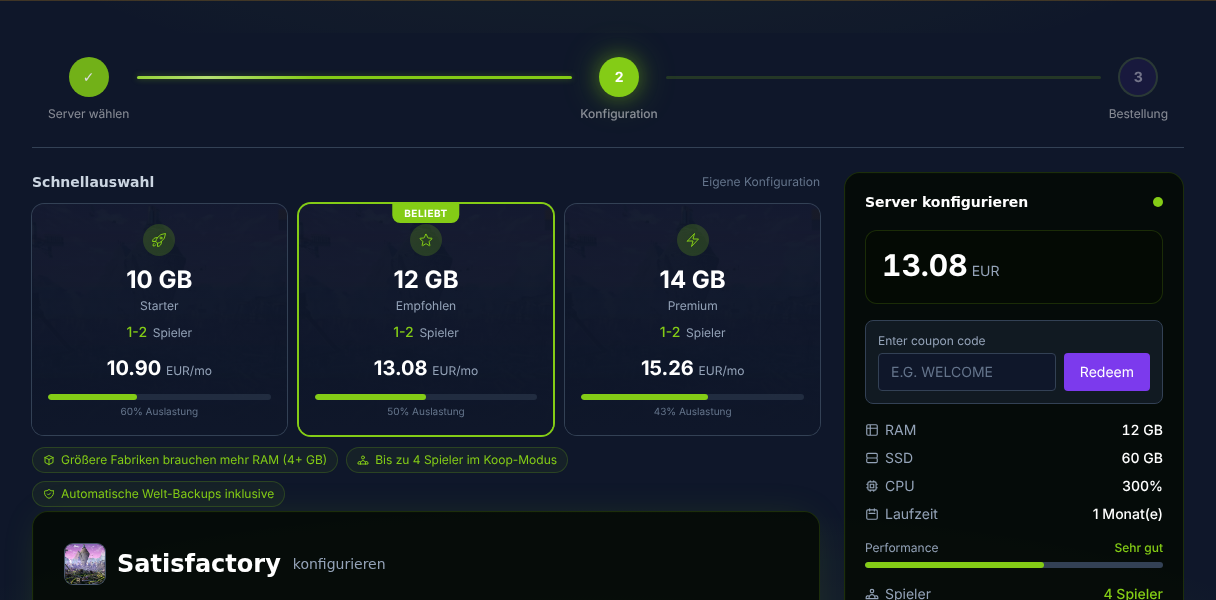
Order Your Server
- Go to game-serverhosting.de
- Choose at least 6 GB RAM (Satisfactory is memory-intensive)
- Larger factories need 8–12 GB RAM — pick the plan accordingly
- The server is set up automatically and is ready within minutes
Initial Setup
Satisfactory uses a unique in-game setup process:
- Start the server and wait a moment for it to become reachable
- Launch Satisfactory → Main Menu → Server Manager
- Search for your server via IP and port (default: 7777)
- Set the admin password — required for all server configuration
- Start a new game or load an existing savegame
Installing Mods
To install mods on your server, use the Satisfactory Mod Manager (SMM):
- Download SMM from ficsit.app
- Select and activate mods in SMM for your server profile
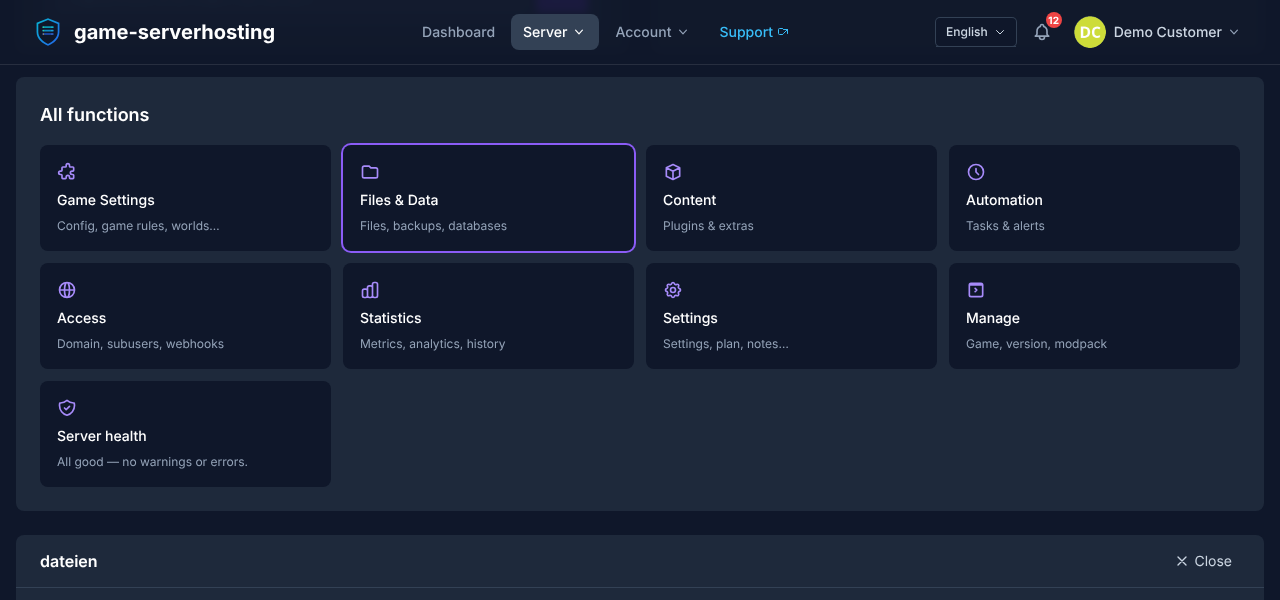
- Upload the mods folder via SFTP or the panel file manager to the server
- Restart the server — all players must have the same mods installed
Managing the Server In-Game
Satisfactory includes built-in server management directly in-game:
- Server name and password — change for access control
- Savegames — switch between saves or trigger a manual save
- Auto-save interval — configure (recommended: every 5 minutes)
- Player slots and permissions management
Ports
| Port | Protocol | Purpose |
|---|---|---|
| 7777 | UDP | Game traffic (required) |
| 15000 | UDP | Beacon service |
| 15777 | UDP | Query (server browser) |
All ports are opened automatically — no manual port-forwarding needed.
Performance
- RAM grows with factory size: Small factories run on 6 GB, large mega-factories need 10–12 GB
- CPU: Satisfactory is mostly single-threaded — high clock speed matters more than core count
- Player count: Officially max. 4, up to 8 players possible in practice (with performance trade-offs)
- Recommendation: Start with 8 GB and upgrade if needed
Uploading a Savegame
- Find your local savegame:
%LOCALAPPDATA%\FactoryGame\Saved\SaveGames\<SteamID>\ - Upload the
.savfile via SFTP or the panel file manager to the server's savegame folder - Select and load the savegame in the Server Manager (in-game)
- Tip: Back up the server savegame before uploading