Your own world instead of a freshly generated map
Built a world in singleplayer or downloaded an adventure map? You can bring it onto your server. A Minecraft world is always a folder (for example world) that contains, among other things, the level.dat file and the region files.
Step 1: Prepare the world folder
Pack the complete world folder – not just individual files. It's important that level.dat sits directly inside the folder. For singleplayer worlds you'll find the folder under .minecraft/saves/<world name>.
Step 2: Activate the world via level-name
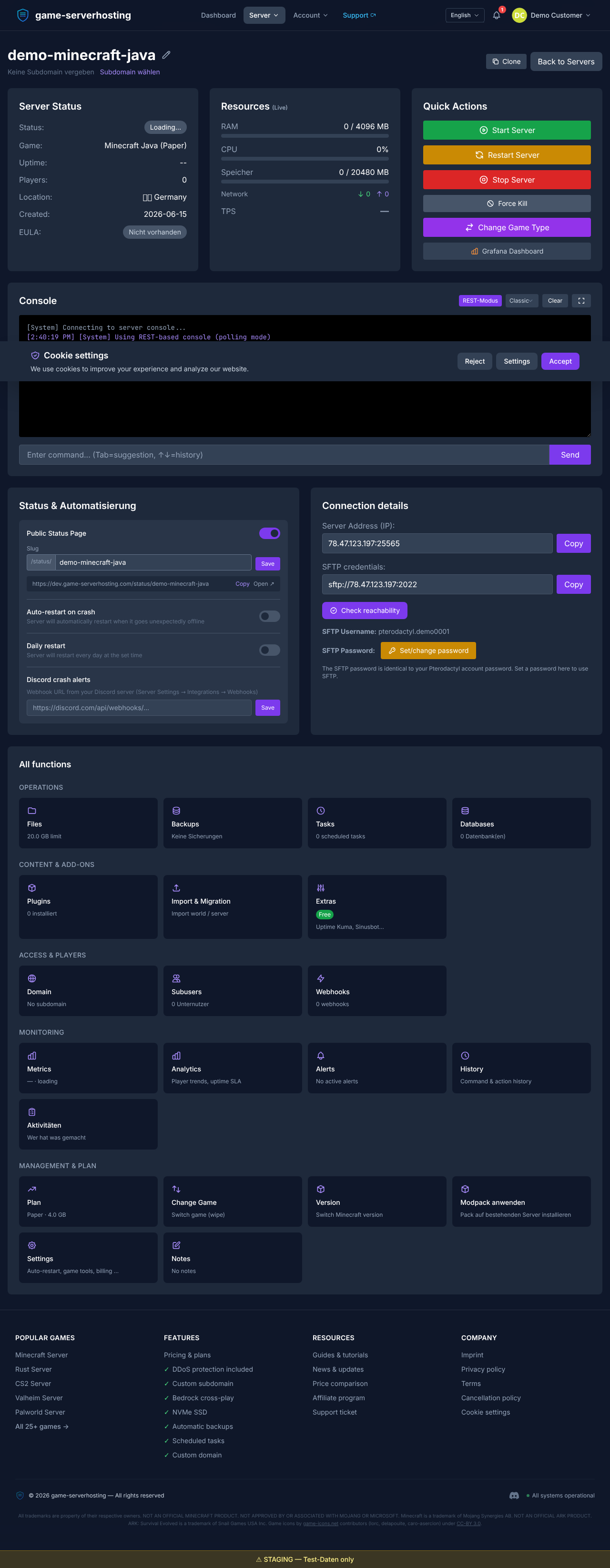
Which world the server loads is controlled by the level-name entry in server.properties. In the config editor at game-serverhosting.de you set level-name to the name of your uploaded world folder.
If you enter my-world there, the server loads the my-world folder as the active map on the next start. This is also how you switch between multiple worlds at any time without deleting files.
Tip: versions must match
A world from a newer Minecraft version can't be opened reliably on an older server version. Load the world with the same (or a compatible) version it was created with.
Summary
You bring your own Minecraft world onto the server as a complete folder and activate it via the level-name entry in server.properties. Mind matching versions and make sure level.dat is inside the folder. Using level-name you can switch between multiple worlds at any time – without deleting anything.