Install plugins without FTP
Plugins extend your Paper or Spigot server with economy systems, protection regions, minigames and more. At game-serverhosting.de you install them directly in the panel – no FTP client, no manual JAR uploads. Requirement: your server runs on Paper, Purpur or Spigot (see the version-switch guide).
Step 1: Open the plugin browser
Open your server and switch to the plugin browser. Use the search field to browse Modrinth and compatible sources for plugins. The result list shows name, description and download counts.
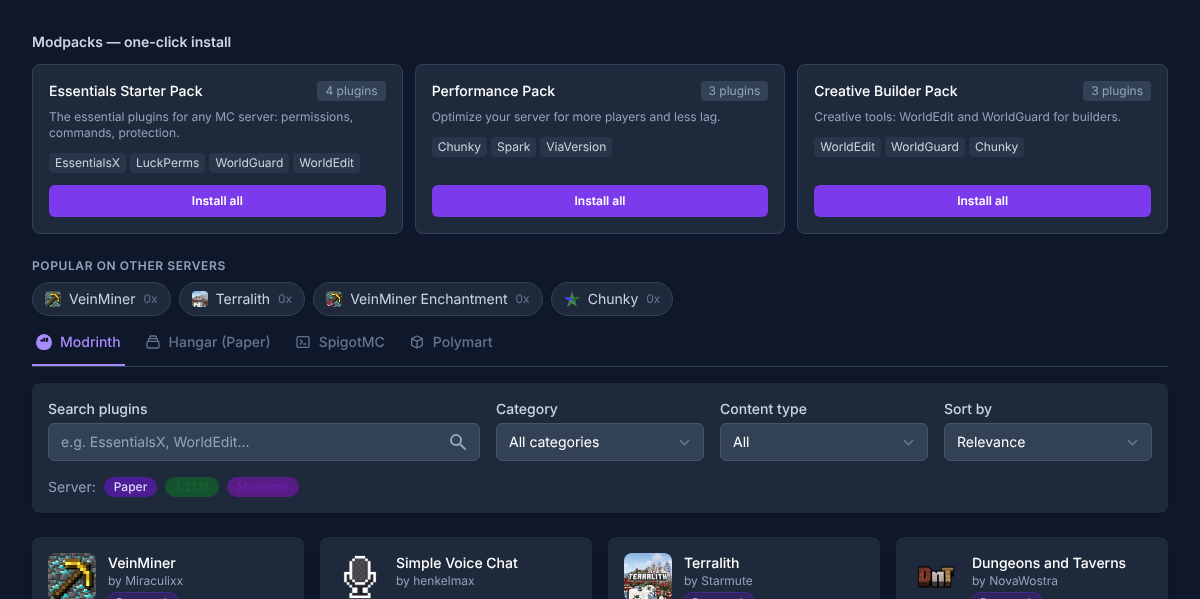
Search for EssentialsX, LuckPerms or WorldGuard, for example – the classics for most survival servers.
Step 2: Install a plugin
Click Install on a plugin. If several versions are available, pick the one matching your Minecraft version. The plugin is downloaded and placed into your server's plugins/ folder.
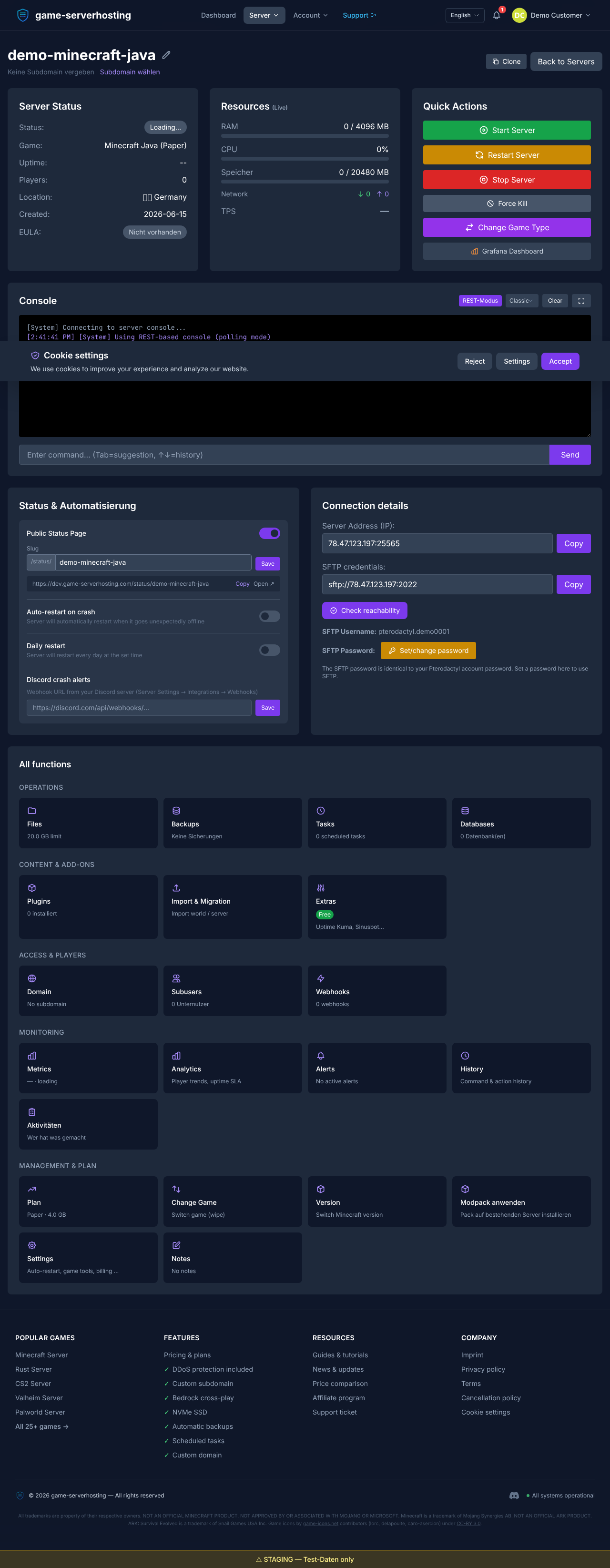
After a server restart the plugin is active.
Step 3: Manage installed plugins
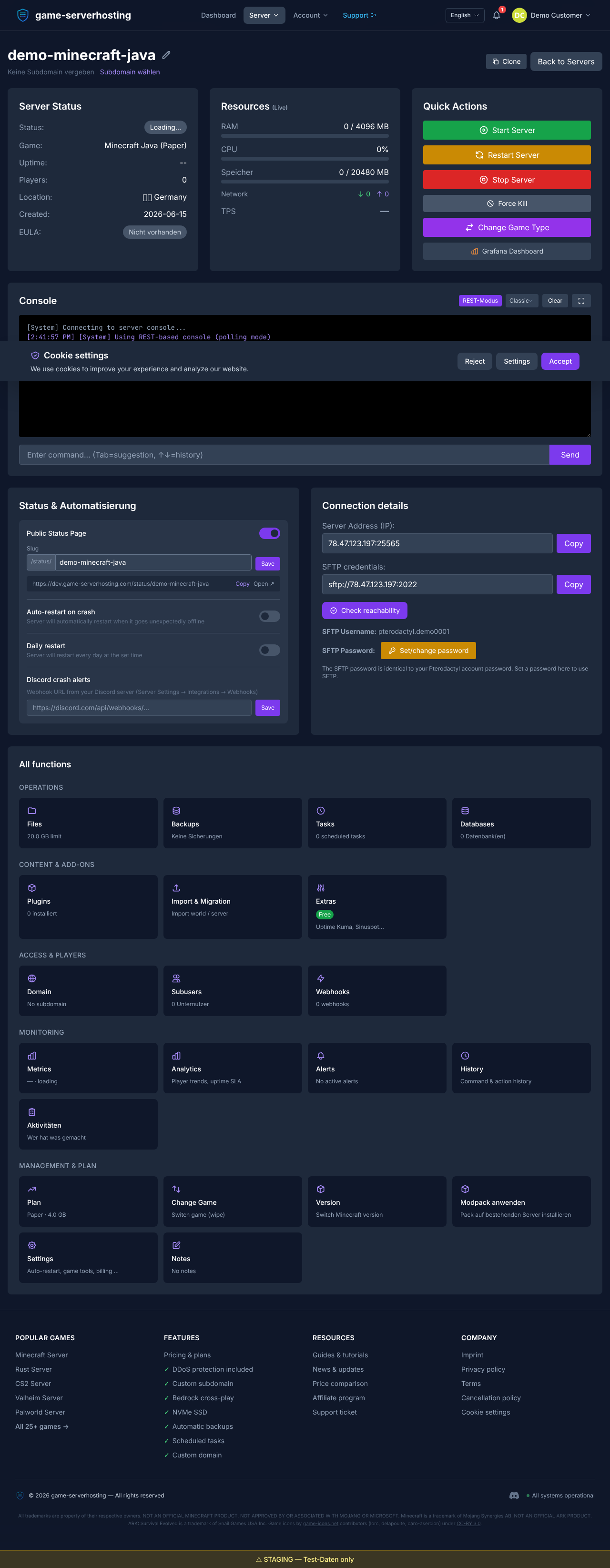
In the list of installed plugins you can enable, disable or remove each plugin. This keeps everything tidy and lets you switch individual extensions off without deleting them entirely.
Tip: mind dependencies
Some plugins need another plugin as their base (for example Vault for economy plugins). Install dependencies first, otherwise the main plugin won't start.
Summary
With the plugin browser at game-serverhosting.de you search, install and manage plugins entirely in the panel – without FTP. Pick the matching version, mind dependencies, restart after installing and manage active plugins conveniently in the list. For mod-based play, the next guide covers mods and modpacks with Forge and Fabric.